
ELEMENT COURSE – SCRATCH –
Variable
Programming Concept
Learn more about how to set up variables and edit it for your own use.
LEVEL

開発環境
SCRATCH
1. What is “Variable”?
To be simple, a “Variable” is a place that you can store information.
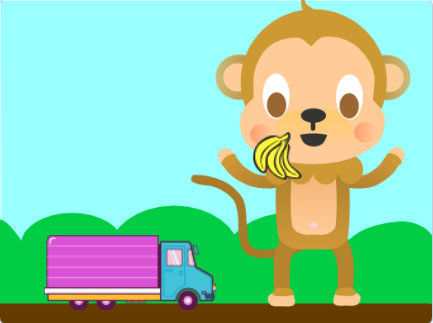
The guy wants to send bananas to the monkey king who lives in the countryside:
Imagine the truck 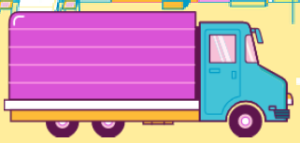 is a variable.
When you put in “how many bananas you want to send to the monkey” (For example, 7)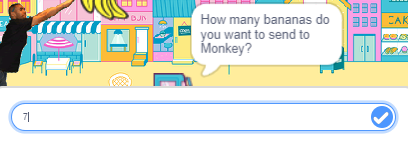
You are putting the number “7” into this truck variable.
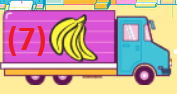
When the truck arrives, the value “7” is still inside.
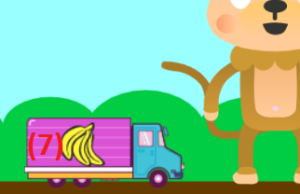
As a result, when we recall this truck variable, “7” bananas will be fed to the monkey.
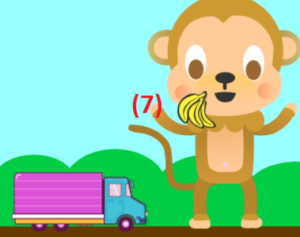
As you can see, a Variable is used to store data, can be edited, and can be recalled.
2. Look into the code!
In Scratch, these are the basic tools for editing variable:

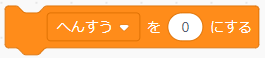
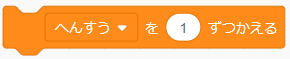
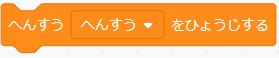
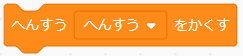
Let’s go through them one by one.
Let’s go through the tutorial below to explain how to create and edit a variable.
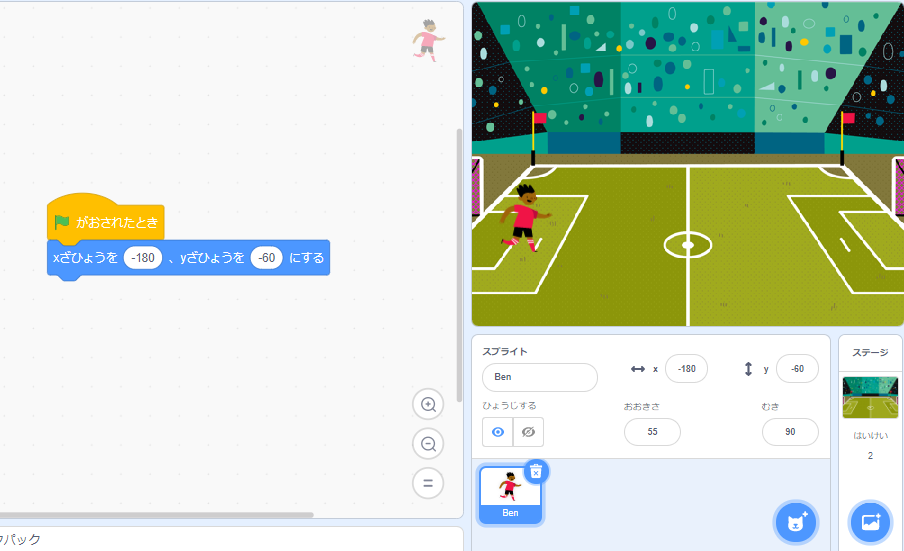
First, set up your project like the following:
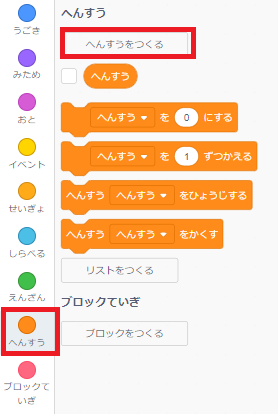
Next, go to “variable” and choose “create a new variable”:
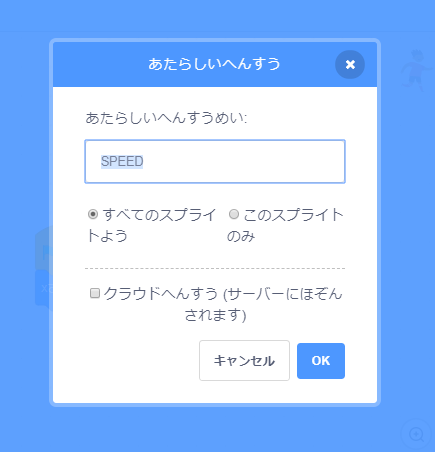
Then name your variable here (In this example let’s name our variable “SPEED”):
Then you will see your new variable named “SPEED” set up under “variable”:
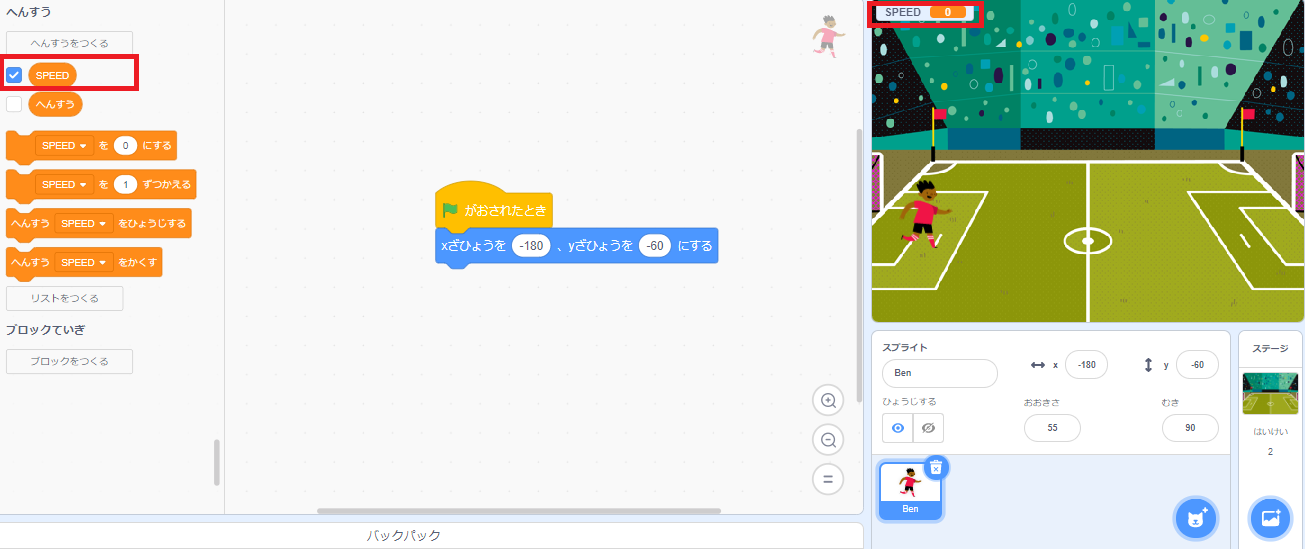
Congratulation! You have create your first variable.
Now, let’s learn how to use the variable that we have set up.
All new variable starts with the value “0” 
To change the variable, we use :
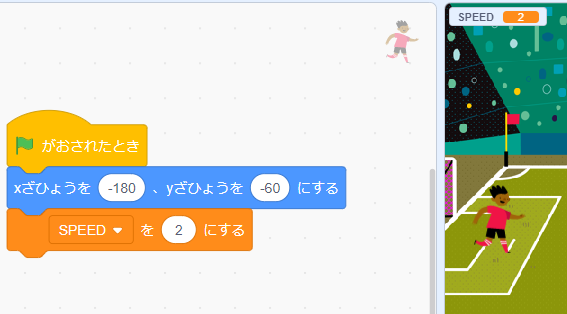
The variable “SPEED” is now set from 0 to 2.
Next, edit your scratch as follow:
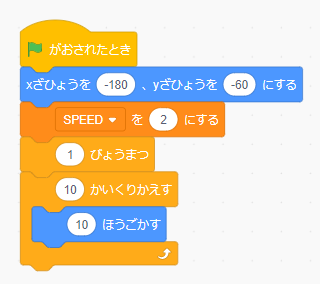
Try the program now and you will realize the boy goes this far:
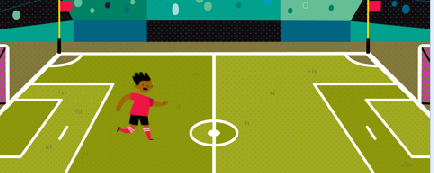
Now, let’s try using our variable “SPEED” to control the boy’s movement:
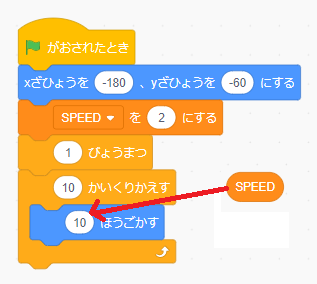
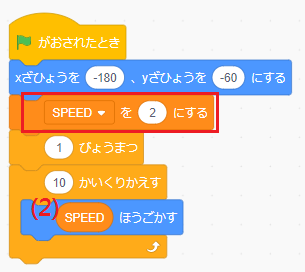
Since we have already set “SPEED” to 2, putting “SPEED” inside means putting “2” inside.
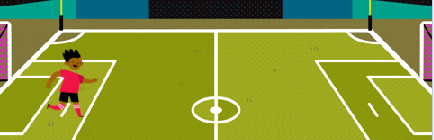
In this case, the boy moves just a little bit compare to before.
So, if we want him to move farther, we can edit the “SPEED” variable:
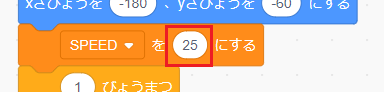
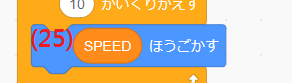
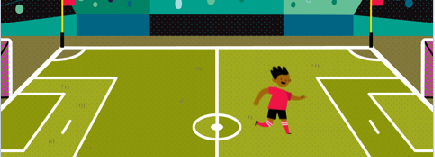
That’s how you edit your variable.
To hide the value of variables on screen, use
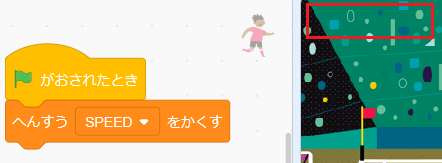
To show the hidden variables, use
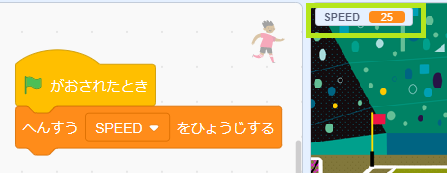
- Use a variable in more than one place 1
- Use a variable in more than one place 2
- Change a variable by adding/subtracting
Variable can be used by different blocks at the same time.
Let’s make a game together and learn how.
————————————-
First, add the sprite “Tatiana” to your scratch project:
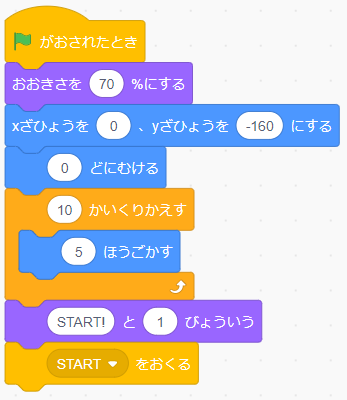
Next, we need to set up its size, starting position and message:
We need to be able to control Tatiana to move left and right:
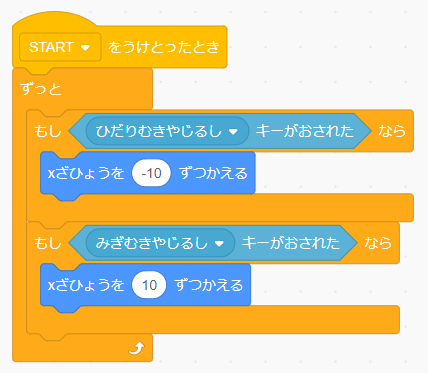
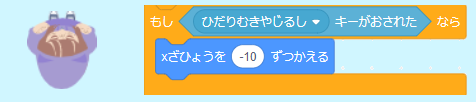
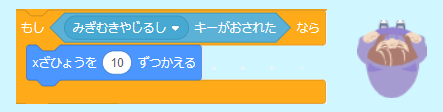
We should make sure it doesn’t fall outside of the game screen:
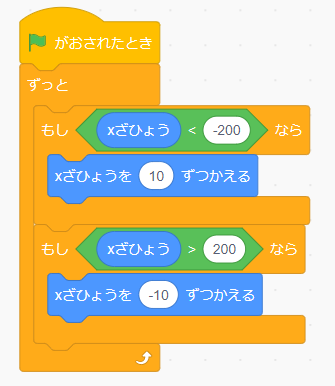
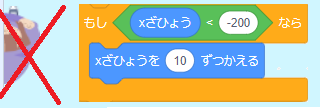
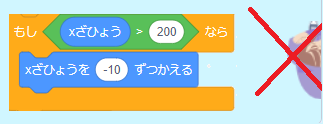
Now we are able to move Tatiana left and right in game.
This is the code we have so far:
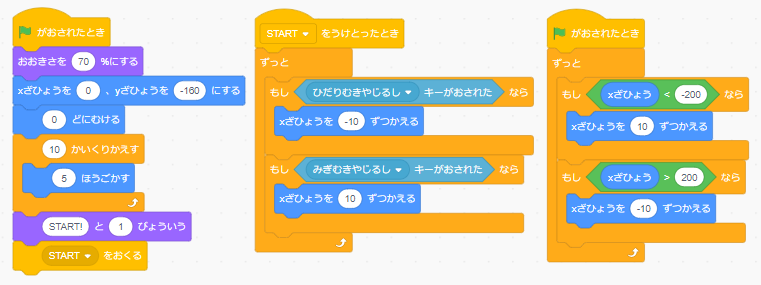
However, it is inconvenient to change how fast Tatiana moves if we need to:
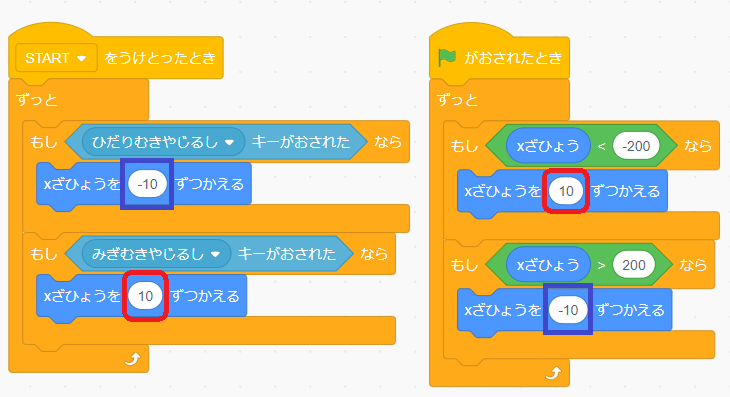
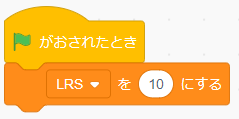
To control the movement in a easier way, we can set one variable for all of the value above:
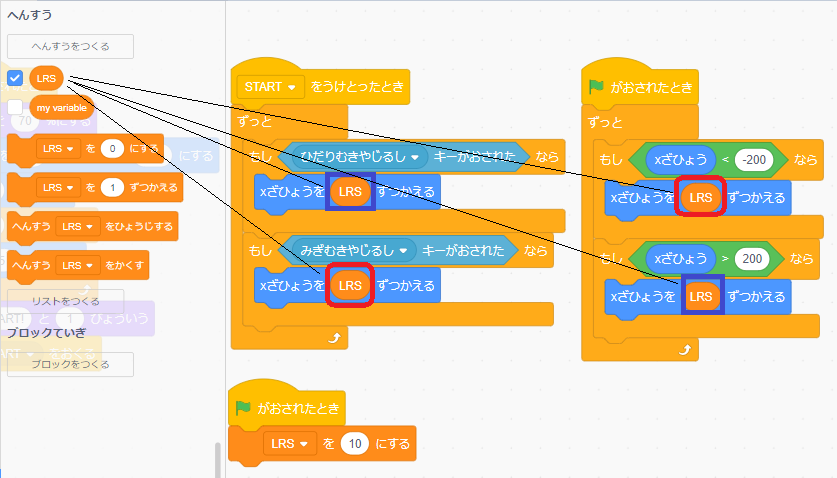
Make sure you multiply -1 for those numbers that are negatives:
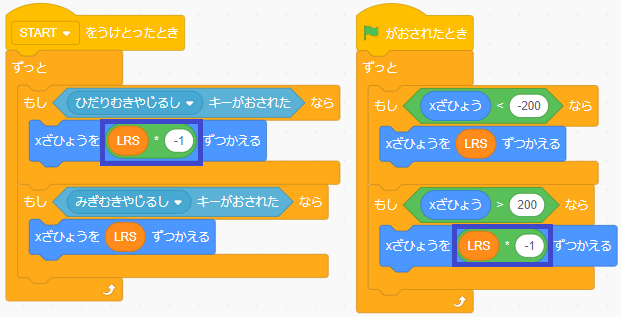
Now if you want to change the speed of left right movement:
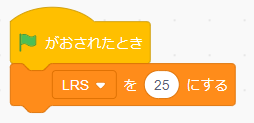
Congratulations! Now you know how to use variable in more than one block.
Let’s add the following script to a new sprite “Rocks”:
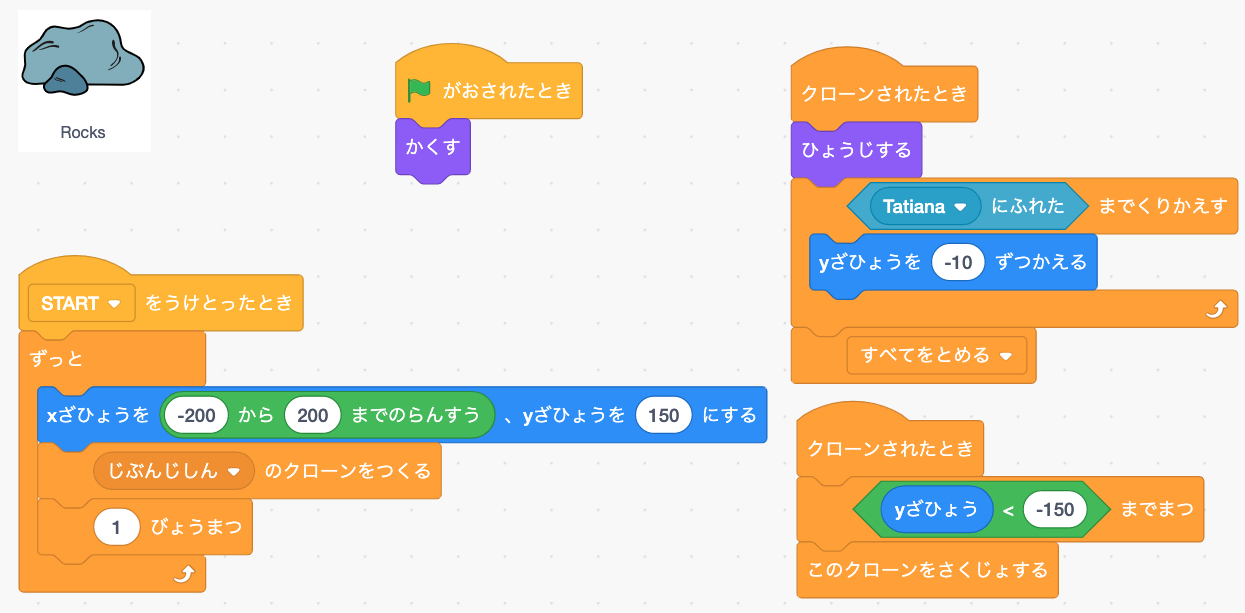
Now if you click the green flag  ,
,
you realize when the rock 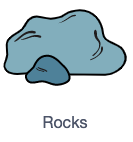 hits the player , the game ends.
Now, we need to set up a pointing system
(New variable named “POINT”):
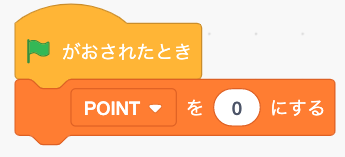
Next, add one of the following so that each second past equals to 1 point:
1.
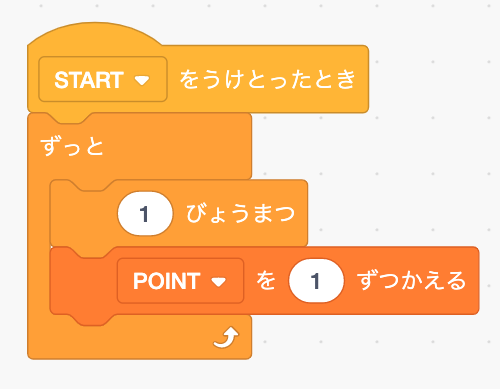
OR
2.
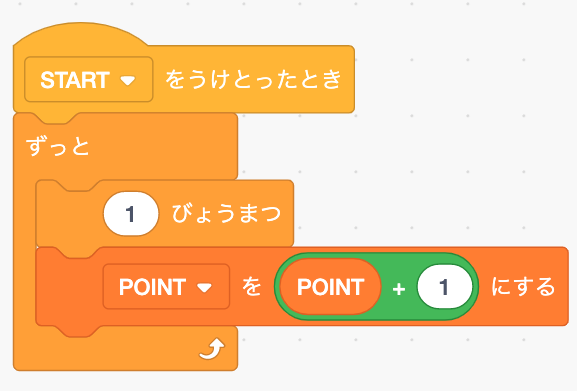
Now you realize the point goes higher and higher if the player survives longer from hitting the falling rocks.
We use  to add(+) a number to an assigned variable (in this case, “+1” is the number being input to variable “POINT”).
To subtract(-), simply put a negative number into the box, like this 
The finished game should look like the following (feel free to add any sound effects/more sprites/new variables to make it fun):
3. Do it yourself! (coming soon)